Lots of quality of life improvements
Thank you to everyone who has been painting, breaking things, and sharing your findings! A lot of this update came straight from what you told us, and this page is new too: from now on, every update lands here.
What's new
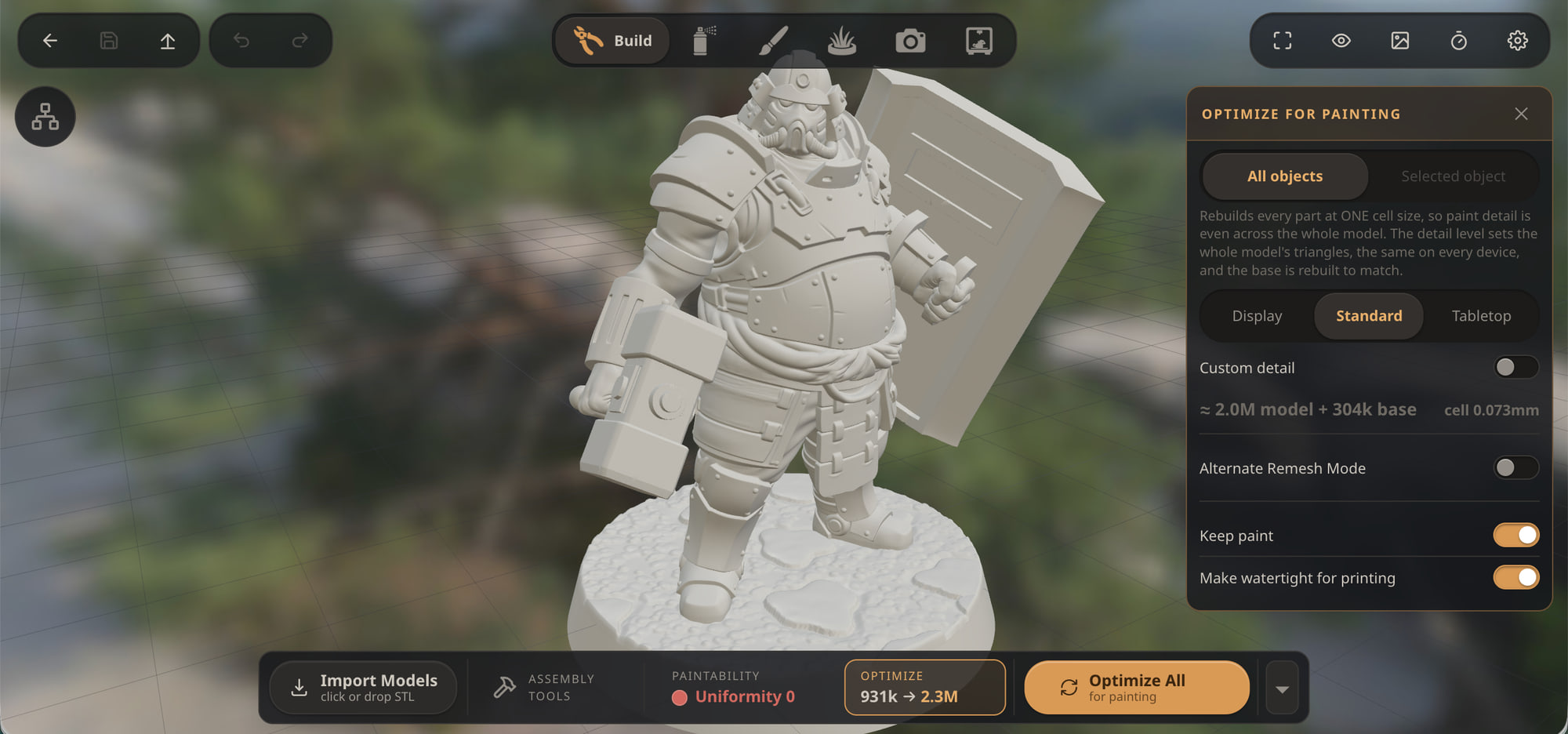
Keep paint when you Optimize your model (Thanks @Fight4Fries). You asked to add detail to a model you had already painted, without losing your colours. Now you can! A new Keep paint switch (on by default) carries your colours, materials, and paint mask across when you move up or down a detail level. Going down a level softens very fine painted detail a little. Otherwise the difference is very hard to spot.
Drag to fill (Thanks Alessandro). Press and drag with the Fill tool and every region you cross fills as you go. If you make a mistake it's all just one undo step. Going back over a filled patch doesn't add a second coat. It is a big help on curved areas like cloak folds, where Edge stop splits the surface into patches. Please play around and let me know what you'd like to still see improved. This is one area that I haven't spent a lot of time on so it can be much better.
Detail presets: Tabletop, Standard, and Display (Thanks @KaZiUpl). Optimize now builds your whole model at a set detail level: Tabletop (1M triangles), Standard (2M) or Display (3M). A preset means the same thing on every device, so a project built on your computer opens and paints on your iPad. Your base is built at the same detail, your project remembers its level, and if your device can't hold a preset, it tells you why. Need to go finer? The Custom detail switch unlocks a slider, after a warning. This one came out of a crash one of you hit: a project made on a Mac was too heavy for an iPad to paint.
Side panels. I'm experimenting with a more consistent design language across all the modesl. The bottom toolbar now serves as each mode's workflow. Each of the options on the toolbar has tool popups which now open in a panel on the right side of the screen, beside your model instead of on top of it. A popup for a tool that's switched on stays open until you close it. This is most likely what will become the default layout. I may start limiting some UI customization so it doesn't end up clashing and blowing up on you.
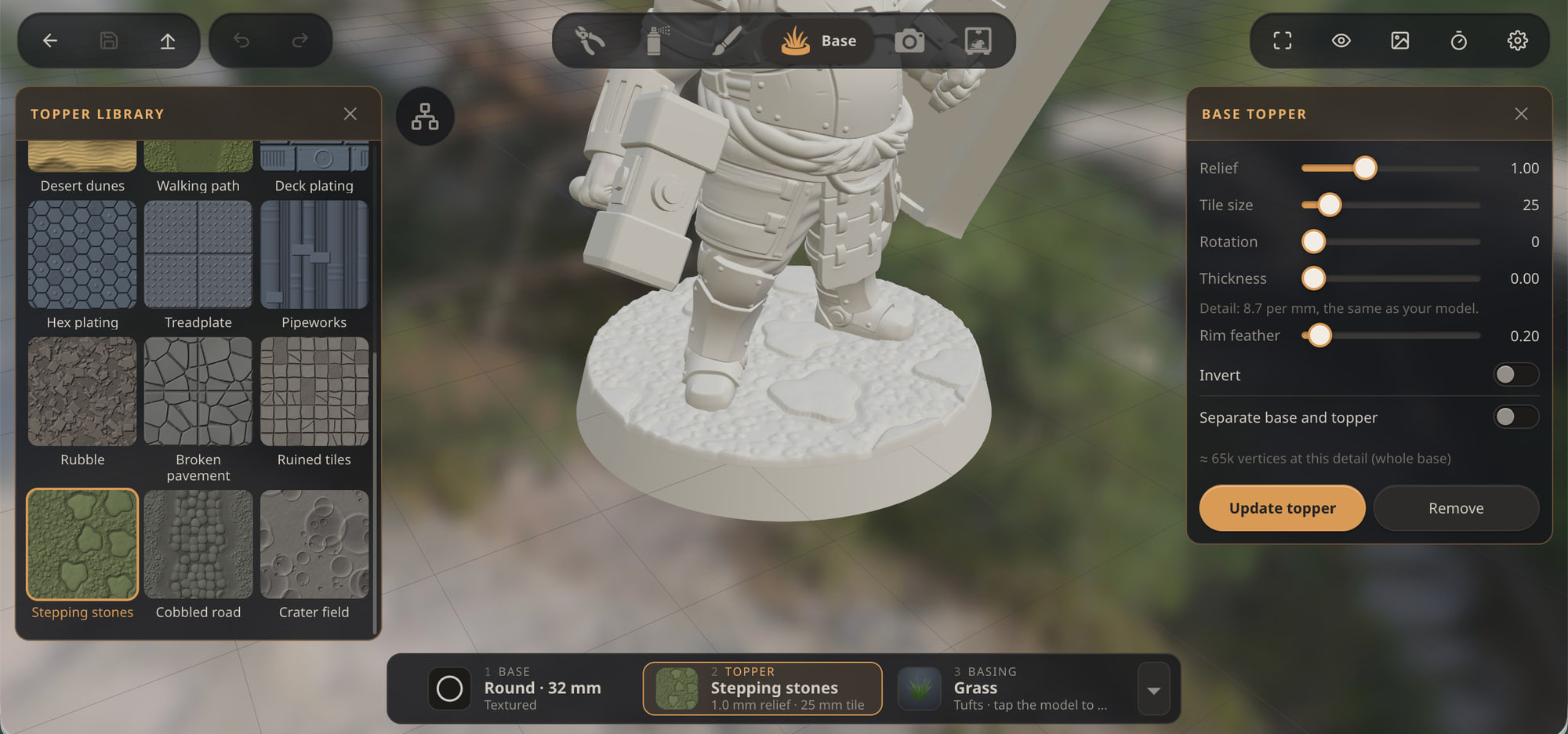
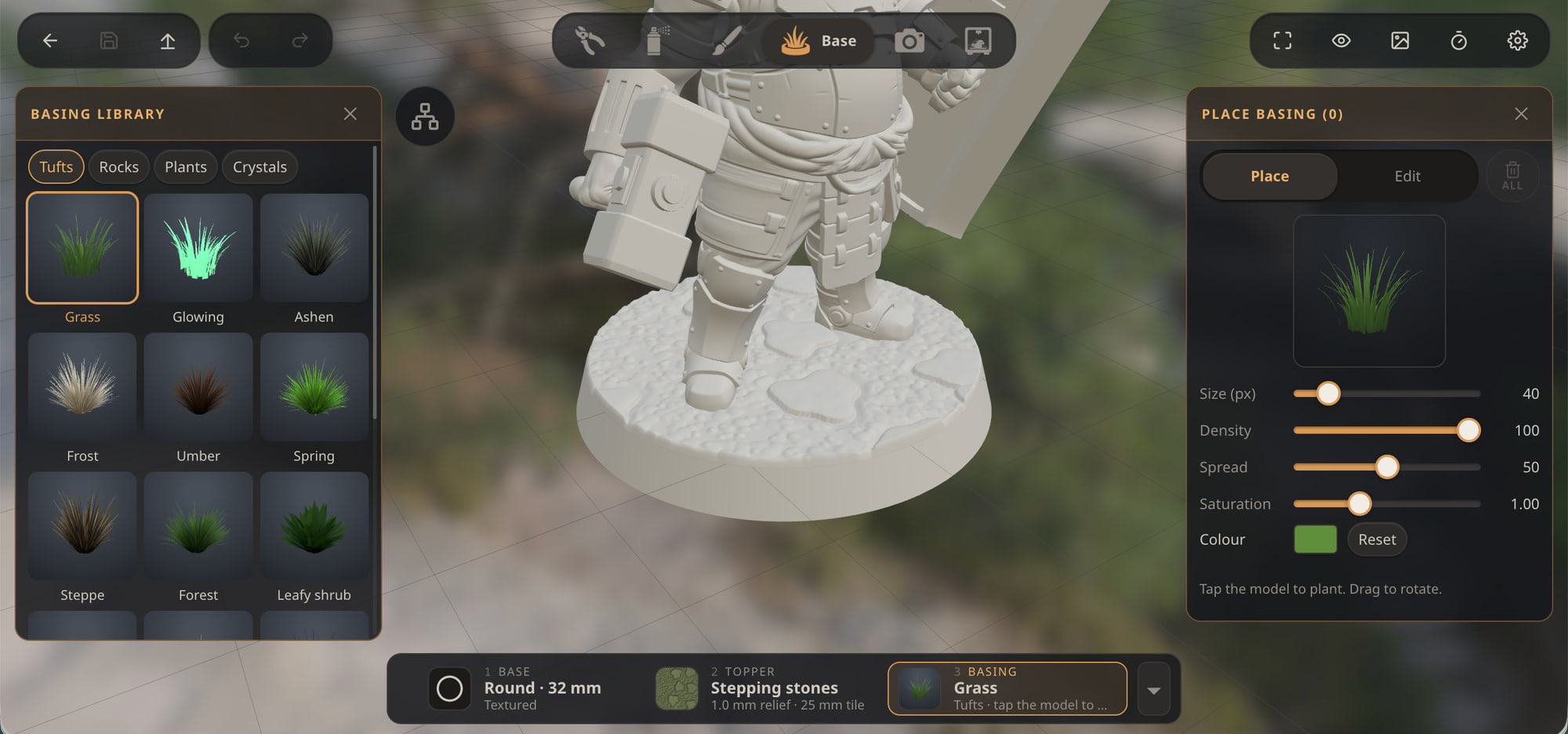
A library panel for Toppers and Basing. Browse textures and basing materials on the left side of the screen while you adjust them on the right. In Basing Edit, tap a library tile to swap the selected piece's material in place. on iPad, which is a small screen this feels very natural. On desktop systems with large screens this might start to feel like a lot of mouse travel. Please let me know how this is working out for you.
New Assembly tools in Build mode.
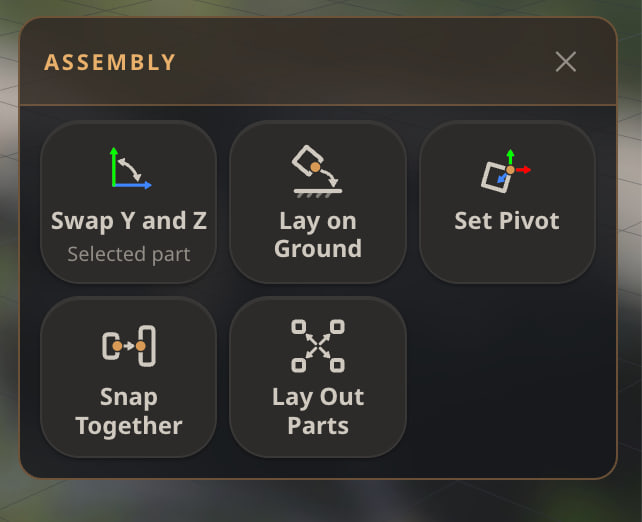
- Lay on Ground: tap a spot on a model part and the model turns to rest on the spot on the floor. This is super handy when you need a model to stand on the ground.
- Set Pivot now works on any part of the model or on the ground. Turn an arm around its shoulder socket, for example, or set a pivot between a model's legs on the ground to line it up with the middle of the base easily.
- Swap Y and Z is now in the Assembly popup. When you import a model it may sometimes end up lying on its side. This is common so you have a 1-click solution for this.
- Glue together: When using "Snap Together" a snapped part can now be added as a child to the part it is joined to, following it around as you adjust your position, rotation, and scale. It's like gluing parts together on a real model.
- Lay Out Parts now works with a base, glides the parts into place, and Undo glides them back. There is a small easing animation so you can tell what is happening. It eases back when you undo as well.
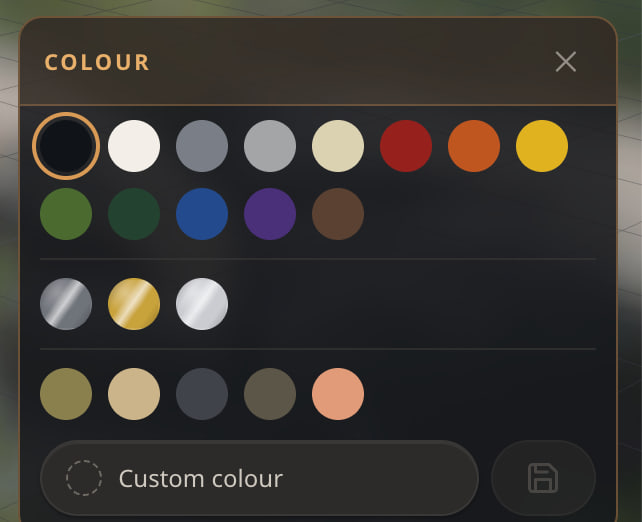
Save your own primer colours. Undercoat mode now has custom colours, metallics included, can be saved and reused in every project on that device.
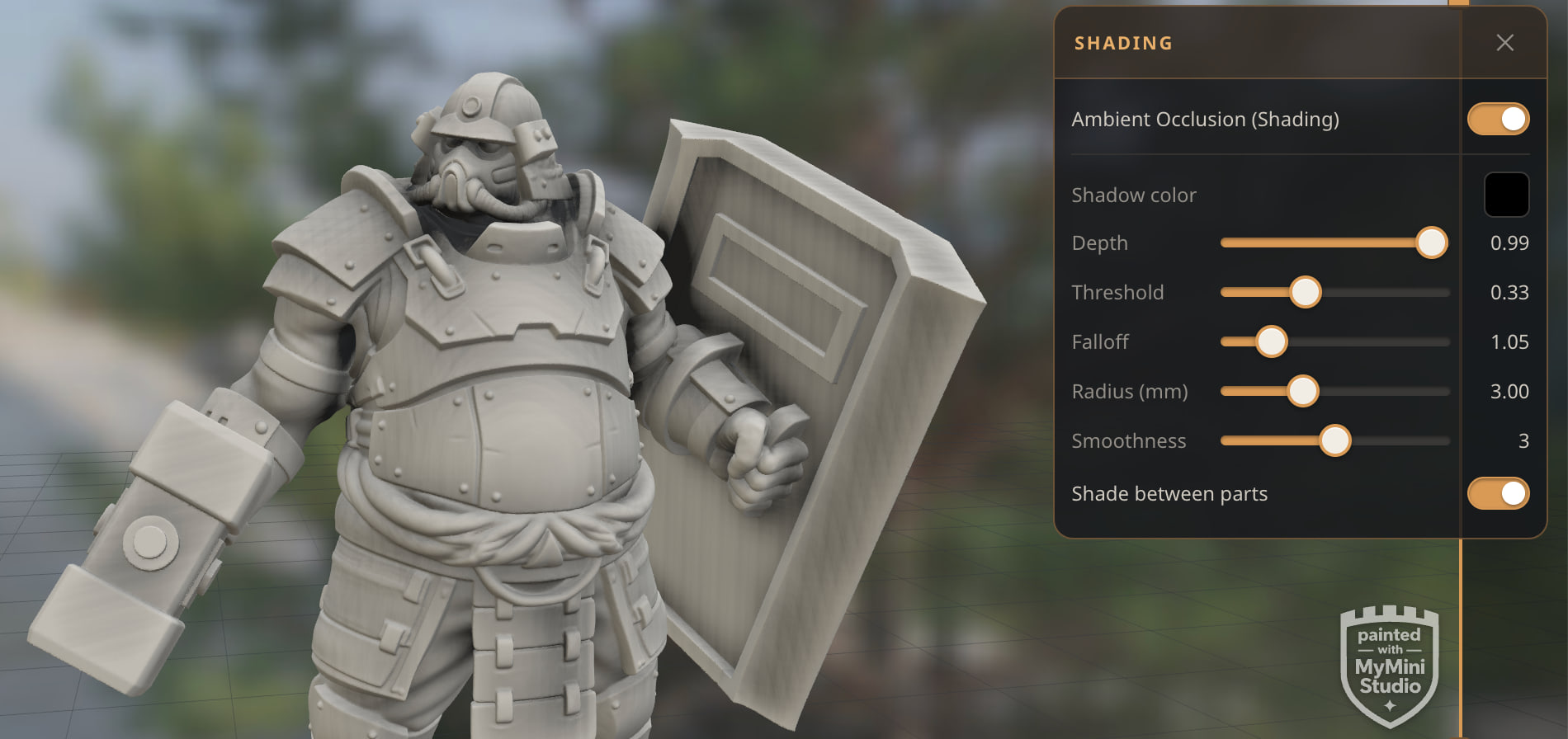
More control over shading in Photo and Print. Ambient occlusion gets Threshold and Falloff, so open surfaces stay clean while recesses go dark. Strength is now called Depth. It's a great way to get some free shading when rendering your models. It's also available in print mode so you can base paint your model in flat colors then simply bake the Ambient Occlusion and the scene lighting over it, giving you effectively the world's fastest paint job if you end up color printing.
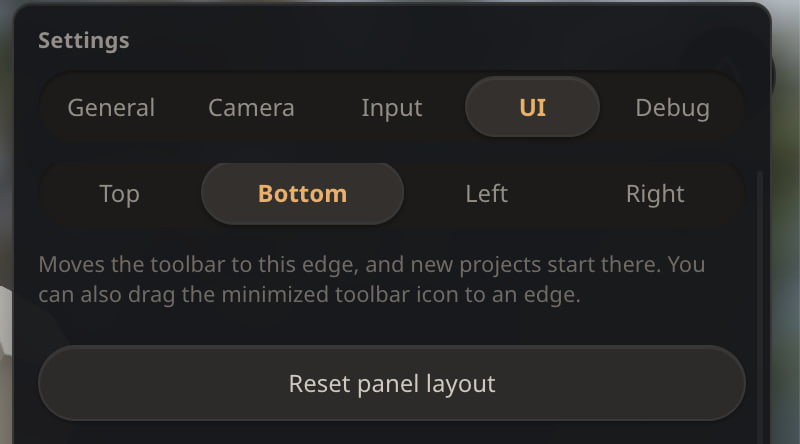
Reset panel layout in Settings puts every panel back where it started. I suggest everyone do this as part of this update so you get the cleanest possible UI.
A log file you can send us (iPad app).(Thanks @KaZiUpl) The app keeps a daily log in Files > On My iPad > MyMiniStudio > Logs. If something goes wrong, send it our way and we can see what happened.
What's improved
"Optimize" in Build mode (it used to be called Rebuild)
- Rebuild is now reworded as "Optimize", because that's what it's for: getting your model ready to paint.
- Progress shows on the button you pressed, with a real percentage and with a progress bar that fills up. Click it to cancel any time in the process. On touch screens, cancelling takes a second tap, so a resting finger can't cancel a run.
- It tells you when you're done. The button reads Optimized, next: Undercoat and takes you to the undercoat step. That saves you an accidental a second run at the same settings, which could only cost a little detail.

- Better results on detailed sculpts, helped along by a model one of you shared (Thanks Alessandro!). Grooves, panel lines, and tight partings stay open far more often. Hard edges on thin armour plates stay crisp, and edge lines come out straighter. Surfaces that cross through each other are repaired, and thin flaps and spikes in tight creases are gone.
Bases
- Bases match your model's detail automatically, inside a fair share of your detail level.
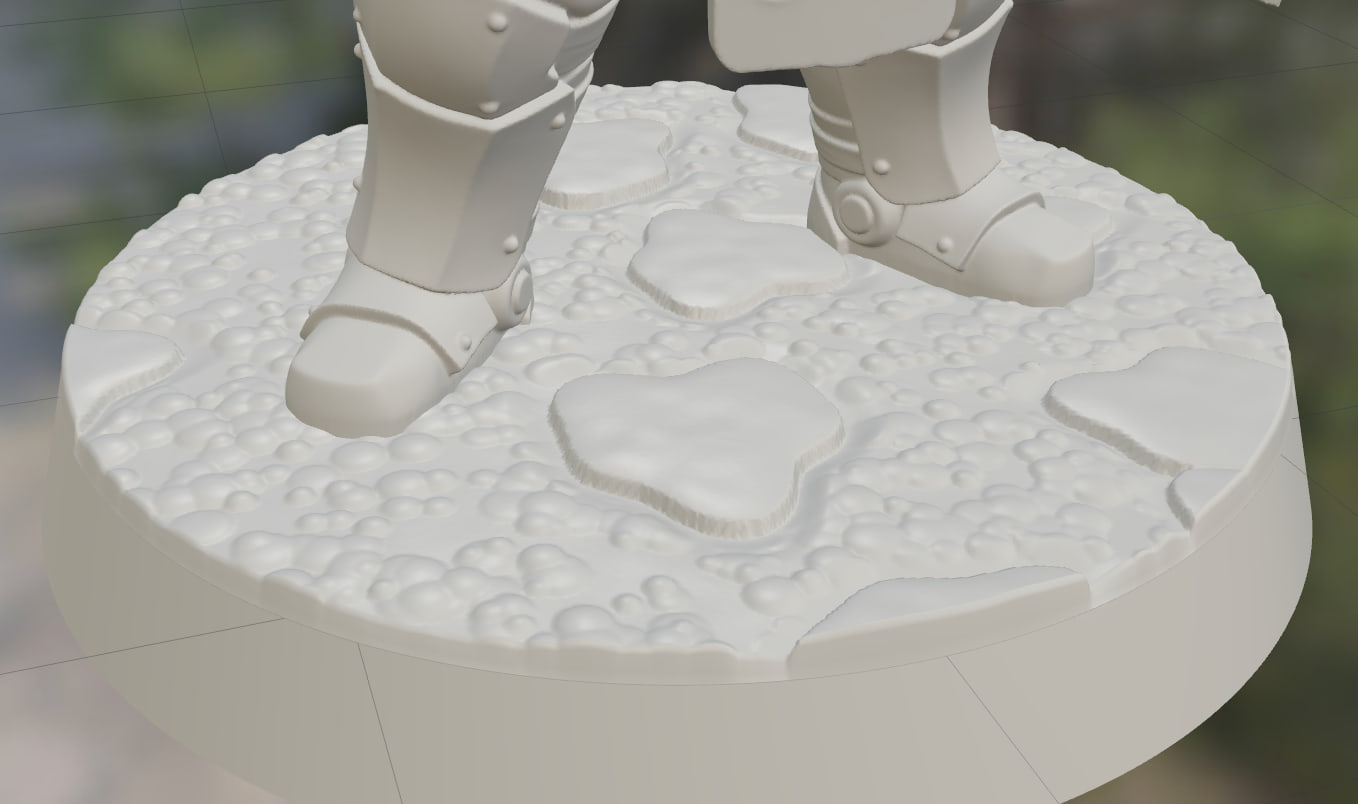
- Base walls are paintable from rim to foot, so you can paint bands up the side and drybrush the top edge. They were low polygon before and were janky to paint along the sides. Ovals are true ovals now, and use fewer triangles.
- Custom topper images are saved in your project, so swapping a base keeps its texture, even after a reload.
- A topper preview says it's a preview, and the app asks before throwing one away.
- The topper is built into the base by default. This will make the base feel more like a single piece like a custom printed base you may print for your minis. "Separate base and topper" is still there if you want it for printing purposes.
- Basing Materials (Tufts, rocks, etc.): A deleted piece can be undone, the placed count updates live in the panel title, and you only plant while Place is open, so you can orbit freely the rest of the time. There was some jankiness where even if you were not in basing material mode that you were accidentally applying the default tuft everywhere. That's no longer the case.
Projects and Home
- Every project is self-contained. There were times where you folks experienced settings and environment from one project carry over into another without a proper reset between projects. Lights, backgrounds, and your Photo, Print, Undercoat, and Base settings save with each project and no longer carry over into the next one.
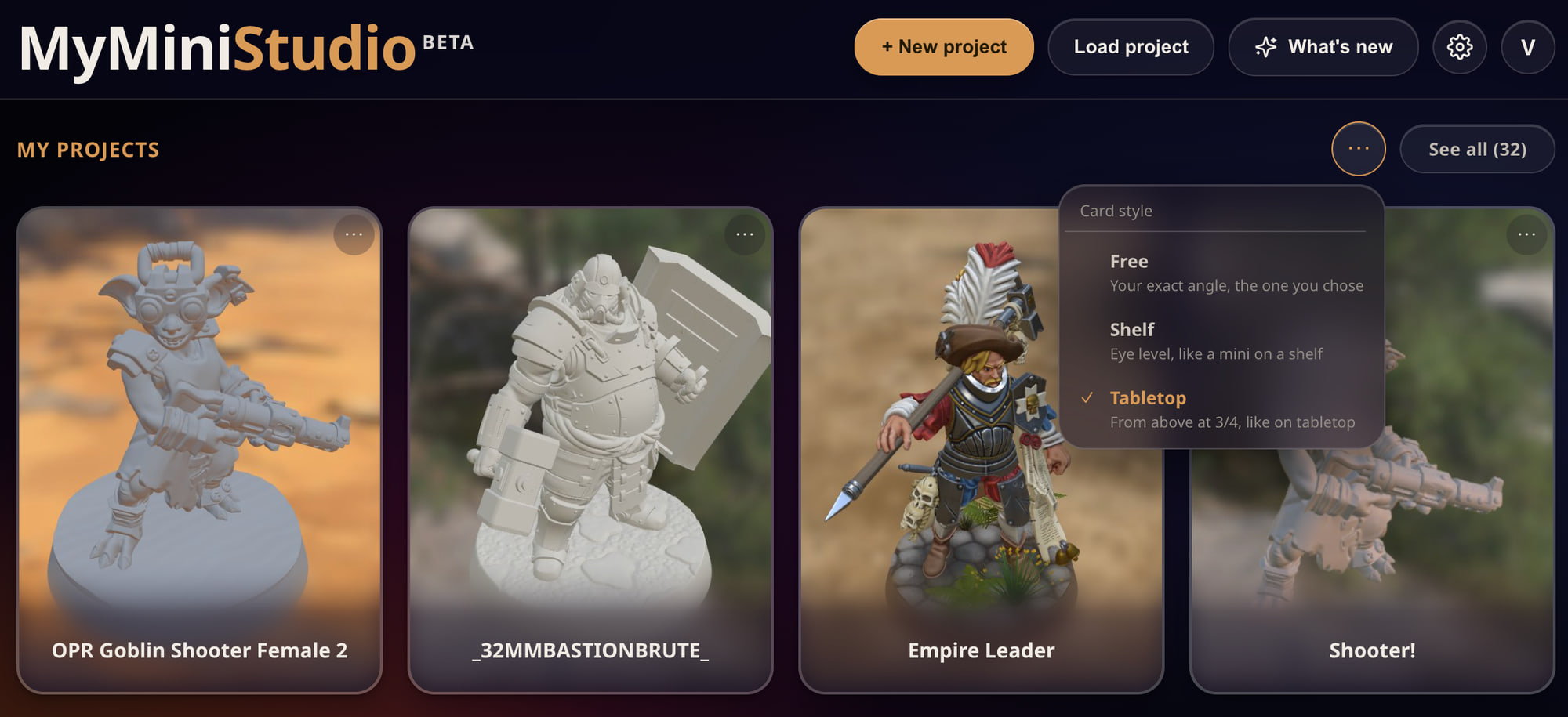
- Shelf and Tabletop card pictures now work on iPad, framed closer and centred on the base. You will need to open a project, make any change, save, and you'll see updated pictures for your projects in Free, Shelf, and Tabletop views.
- The "Recover changes" chip now reads Autosave.
Painting
- Mixing palette ends open our own colour picker, with Metalness, Roughness, and Glow, instead of the system colour picker.
- Ambient occlusion works in the background on a separate thread, so you can keep orbiting instead of waiting out a freeze on big models. Previously the screen would be frozen for a few seconds if AO was enabled while entering Photo or Print mode.
- The Warming up sweep on technique tiles now moves at an honest pace. Previously they were overly optimistic.
- In Fill mode fill Everything option is now called Object.
Look and feel
- A cleaner brass look for popups and panels.
- A slimmer Brush panel, and its sliders no longer jump when you switch technique.
- Smaller minimized icons, bigger minimize arrows, and the top-right buttons grouped together.
- The Print bar fits in portrait, the Timelapse menu is tidier, and the selected primer shows a clear ring.
- Apple Pencil Pro and trackpad hover highlights work, and finger taps no longer leave buttons looking stuck on.
- On the web, the "only saved in this browser" banner can now be snoozed. It will come back after some time to help avoid folks losing projects when browsers clear their local storage from time to time (I don't have control over that process, it is somewhat random).
Bugs fixed
- iPad crash when painting a heavy project (Thanks @KaZiUpl). A scene that is too heavy for your iPad now gives you a clear choice before painting starts, instead of a crash.
- iPad stuck on the Home screen after a crash (Thanks @KaZiUpl). Home no longer reads whole project files just to draw their cards, so heavy project folders open much faster. This should stop the restart loop should you end up in one.
- Adding or swapping a base on a heavy model crashed the iPad, especially right after entering Base.
- Paint Thickness could open at another technique's Load value instead of 100.
- The last paint you used in one project could follow you into the next one.
- Lay Out Parts did nothing even when the model had a base.
- Swapping Y and Z twice left a rotated model floating above the floor.
- Lay on Ground left the tapped spot hovering above the floor on textured undersides.
- Leaving without saving made the Home card show your unsaved changes.
- Replacing a base after a reload dropped its custom texture.
- Finger taps to place tufts on iPad raised the count but showed nothing until the screen redrew.
- Moving a basing piece with the handles skipped the "keep or discard" question.
- The pivot hint stayed on screen forever.
- On models with many parts, the Scene list pushed the bench and Brush panel aside effectively breaking the UI.
- Scene & Lighting could run off the edge of the screen, or come out too narrow after rotating the iPad.
- The Paintability heatmap sometimes didn't appear until you orbited.
- The turntable Preview button didn't reset after a spin.
- The Photo Shading chip said "Off" while AO was on.
- The progress spinner kept restarting, and counts read "1000k" instead of "1M".
- Several outdated tooltips and help lines were corrected.
Known issues
Heads up for older iPads. MyMiniStudio now needs a device with at least 4GB of memory. Older devices see a notice at launch. This was a deliberate decision in order to simplify the level of detail and optimization logic. It was honestly getting too complex and I had to consider a lot of options which introduced more problems than they solved. Sorry folks with older iPads!
- On an 8GB iPad, choosing Paint anyway on a scene well over its limit can still crash. When the app suggests a lighter detail level, take it.
- Very thin hair strands can still break into dashes after Optimize. We know, and we're working on it (Thanks Alessandro).
- Very fine raised trims can show a slight stair-step after Optimize, and the very finest gaps can still close up. A higher detail preset helps with both but this will require another iteration of the optimization/remeshing logic. This will probably be a thing we work on continuously for a while.
- Optimize takes a few seconds longer than before, because of the new quality passes. It does leave the optimized model more closely resembling the original artwork which you imported so this is a fair tradeoff. A filling progress bar makes the time feel like it goes by faster though.
- If you Optimize with Keep paint off, your paint mask is cleared along with the paint.
- Already optimized projects saved before this update show "Optimize All" until you optimize them once.
- Toppers made before this update can't be rebuilt at a new detail. Swapping one gives a plain base, and the app tells you why.
- If a project has an odd Paint Thickness from before this update, drag it to 100 once.
- Swap Y and Z turns each part around its own centre, so group a multi-part kit first. After an Undo, the next swap turns the other way.
- Remove all basing can't be undone (it asks first). I may change this in the near future.
- In Photo, extreme Threshold and Falloff settings can show some banding in the shading.
Keep the reports coming. They make the app better for every painter. We are starting to get to a point where this is feeling less beta and more like a real retail app. Not long before we can call in our friends and hobby colleagues to join in on the fun :)
Vlado
Not painting with us yet? Start with the free starter minis, right in your browser.
Start Painting